Configuring Dashboard [Practice Administrator]

Contents
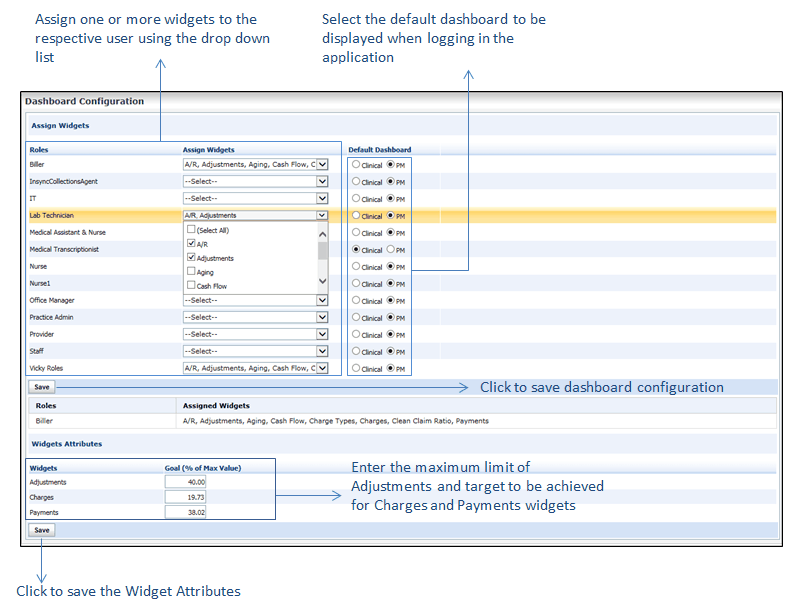
Practice Administrators have rights to assign different widgets to different roles as per their requirements. Once widgets are assigned for any role, all the users of respective role can access the PM Dashboard. The complete list of roles and widgets is displayed on the Dashboard Configuration screen.
When assigning roles, practice administrators can define Widget Attributes that are the goals to be achieved for Charges, Payments, and Adjustments widgets. System allows setting these goals in percentage of maximum amount to be collected on the Dashboard Configuration screen.
The Default Dashboard to be displayed when logging in for the first time can also be decided by practice administrator when assigning widgets.
Note: To enable PM dashboard to the practice, practice administrator must assign at least one widget to Practice Admin role.
To assign widgets:
| 1. | Login to InSync as a practice administrator. |
| 2. | From the left menu items, select Administration > Configuration > PM > Dashboard. |
| 3. | To enable PM Dashboard for the practice, select at least one widget in the Assign Widgets column next to the Practice Admin role. |
| 4. | To assign widgets, select widgets from the drop-down list next to the desired roles. |
| 5. | By default, the Clinical option is selected under the Default Dashboard column. Select PM option next to the role for which the PM Dashboard is to be displayed by default. |
| 6. | Click Save. Once saved, system displays the list of Roles and Assigned widgets in the table below. |
| 7. | In the Widgets Attributes section, enter the percentage of maximum value to be achieved next to the following widgets: Adjustments, Charges, and Payments. |
| 8. | Click Save. |